Webflow Animations Complete Guide: Subtle Effects, Big Impact

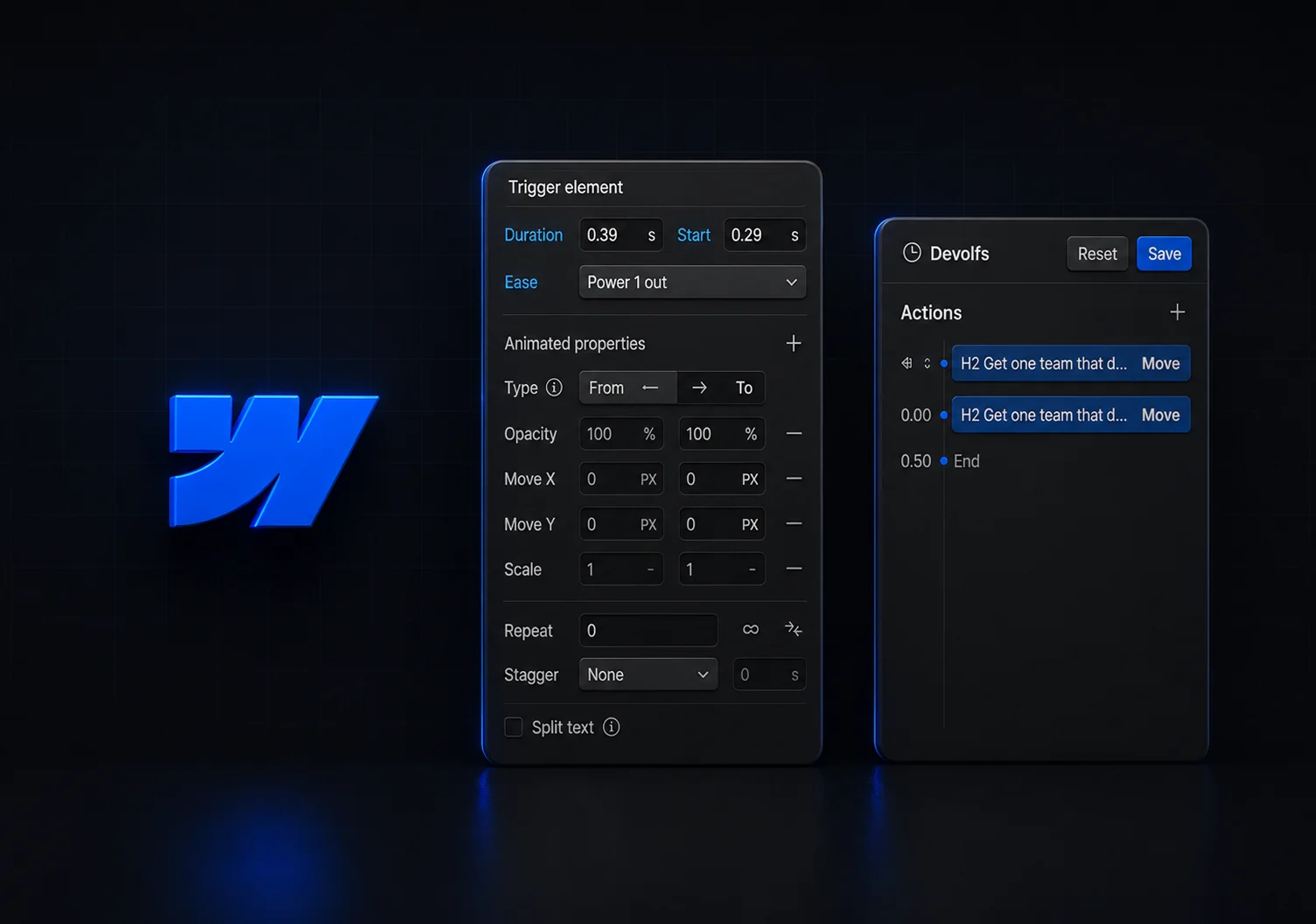

- How Webflow animations help brands stand out while improving usability and engagement
- What are the main benefits of using Webflow animations
- How to create Webflow animations effectively
- What are the different animation types, and when to use each
- How to customize animations through native Webflow tools, CSS, and JavaScript
- What are common troubleshooting issues, and how to fix them
- What are the best practices for keeping motion purposeful
It is estimated that, as of 2025, about 17.5% of all websites use at least one animation. Over the years, Webflow animations have become an effective tool for captivating visitors. However, in order to do so, they needed to do more than just look cool. Purposeful Webflow animations guide your users’ attention and create flows, but also allow you to tell your brand’s story without words. We’re here to show you how to achieve just that.
Let’s find out how to add, customize, and troubleshoot your Webflow animations to enhance your site and boost user engagement.
The benefits of using animations in Webflow
The fast pace of today’s technology has brought visibly shorter attention spans. Therefore, businesses need custom website solutions that will help them catch the visitors’ attention and keep them curious and engaged. Luckily, it can be done fairly simply, with the help of thoughtful motion design.
When done right, Webflow website animations bring natural interactions that make your site feel alive. Not only that, but they are able to add character to your brand and set you apart from the competitors. With a well-thought-out motion design, you can:
- Keep visitors engaged - microinteractions can keep users active more than static elements
- Improve user experience - motion helps users understand page flow and interactions
- Guide user attention - animations present a subtle way of building hierarchy and flow
- Help users grasp information easier - motion illustrates what static design can only describe
- Elevate how your brand is perceived - smooth transitions make your site feel top-tier
- Makes your messaging more memorable - subtle animations can create a personality without overwhelming visuals.
Types of website animations you can create in Webflow
Before jumping into the how-to, we decided to set up some structure. We’ve organized website animations into five different types, followed by an explanation of their use and real-world Webflow animations examples.
How to animate in Webflow (step-by-step guide)
Animations might look complex, but as one of the best no-code website builders, Webflow makes the process of creating them surprisingly intuitive. As Webflow experts, we’ve prepared a quick, hands-on walkthrough that’ll help you easily go from static layouts to motion that feels natural.
#1 Open the interactions panel
First things first - in order to start building an animation, you need to find and open the interactions panel. It’s located on the right toolbar, marked with a lightning bolt icon. It’s a go-to place whenever you wish to create new or edit an existing animation.
#2 Choose a trigger for animations in Webflow
Every animation starts with a trigger. A trigger is an event that tells Webflow when something should move or change. Think of it as the signal that sets your animation in motion. Among the most common triggers designers use are:
- Scroll - elements are animated as users scroll through the page.
- Hover - movements are added when users hover over buttons or images.
- Click - animations happen when a user interacts with an element (a button, image, or icon)
- Page load or scroll into view - animations play automatically when the page loads or when elements appear on screen
#3 Define the target element
The next step is selecting the object you want to animate. It can be anything from buttons and images to headlines or even entire sections.
You can target a single element to animate, but it’s also possible to apply the same animation to multiple elements with the same class. Therefore, if you want consistency, build animations as reusable components. This saves time and keeps your design clean.
#4 Add a new animation
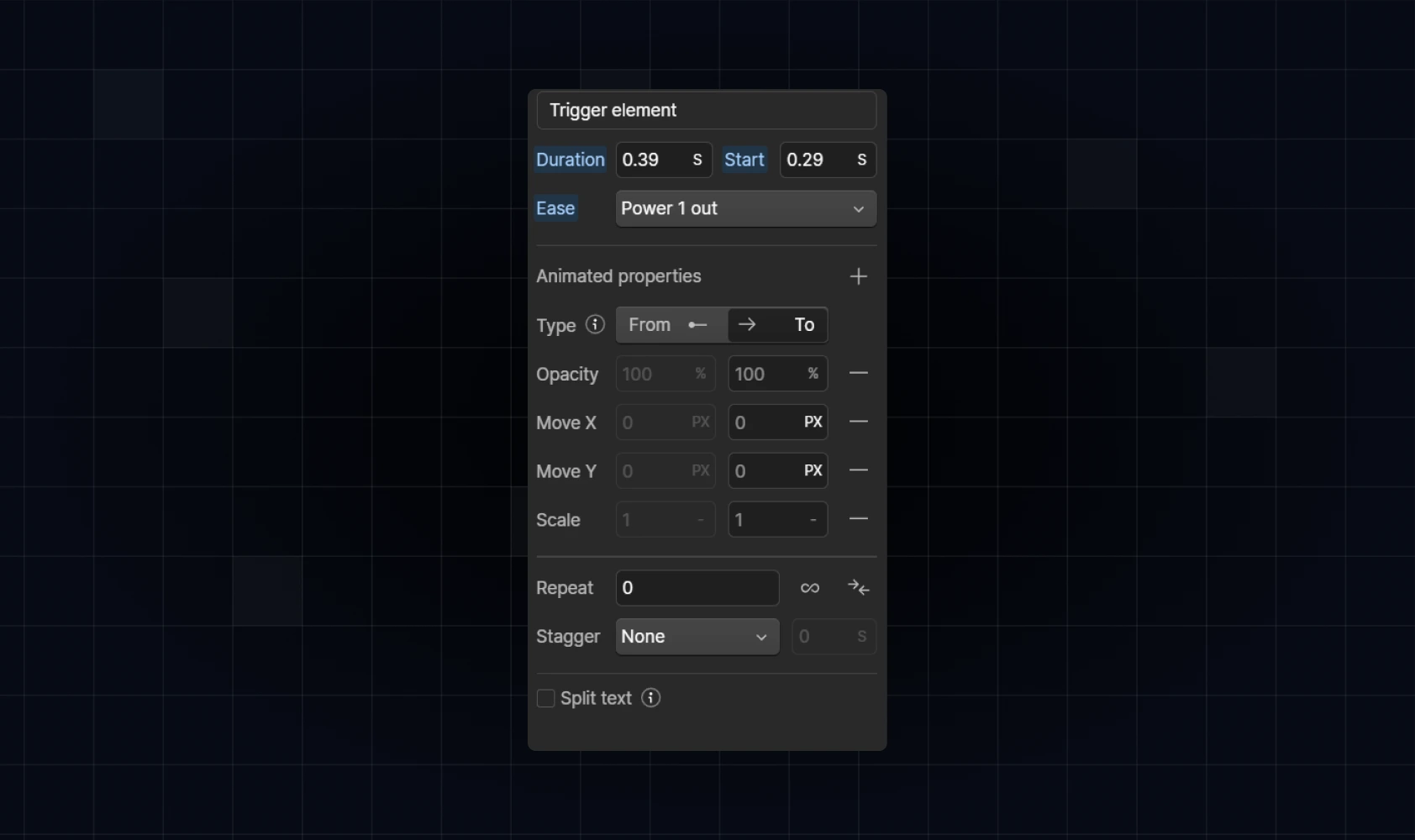
Simply click the “+” icon under Actions to create a new animation. Here, you’ll be able to set up keyframes and adjust properties like:
- Opacity (fade in/out)
- Movement (slide or float)
- Scale or rotation (grow, shrink, spin)
Note that you can even combine multiple effects.
#5 Adjust easing and duration
Easing refers to how your animation moves. This step is crucial for making your animations feel natural and human-like rather than robotic. For natural motion, choose easing options (like ease-in-out) and adjust the duration (0.3–0.8 seconds is often ideal). In most cases, it’s better to avoid abrupt starts and stops (unless you deem them important for stylistic purposes).
#6 Preview and refine
Use Webflow’s Preview Mode to see your animation in action. If the motion doesn’t feel balanced enough, you can always make changes regarding timing and sequences. Keep in mind that small changes in timing can make a big difference in how visitors experience your site.
#7 Publish and test on multiple devices
Animations can behave differently across devices and browsers. That’s why it’s important to test how they work- everywhere. See how motion behaves on desktop, tablet, and mobile to make sure it remains smooth and doesn’t interrupt website usability on any device.
At the same time, make sure to test loading speeds too, since sometimes animations can affect site performance.
Creating custom animations in Webflow
Basic Webflow animations are great for adding motion, but custom animations are where you go beyond the expected. In the sections below, we break down the types of custom animations we use and how we use them, as well as how they elevate your site and why each approach matters.
Using Lottie animations
Lottie lets you bring rich yet lightweight vector animations into Webflow without slowing down your site. When dealing with them, you need to:
- Import JSON files directly from LottieFiles
- Control playback through scroll, hover, or click triggers
- Optimize site performance by keeping file sizes small
Using custom code or CSS
Sometimes, Webflow’s native tools aren’t enough for very specific effects. That’s where custom CSS or JavaScript come in to let you fine-tune animations to match your vision. Those looking for advanced precision and creativity can embed lightweight CSS transitions to control subtle motion like hover micro-effects or staggered reveals. It’s also possible to custom code with Webflow triggers for more complex sequences, like multi-step interactions, advanced hover states, or, for example, timed effects.
Syncing animations with scroll or sound
Long-form storytelling or product journey from scroll progress triggers that let content animate as users move through the page. It’s also possible to make animations move in time with the sound (audio, rhythm voicovers, and so on). It’s an important possibility to note since, for storytelling or highly interactive sites, syncing animations to scroll or audio can create a truly immersive experience.
Troubleshooting Webflow animations
Even the best animations can misbehave sometimes, which leads to visitors experiencing motion that’s lagging, overlapping, or even not triggering at all. Here are some of the most common motion design problems, their most probable causes, and simple ways to fix them so they do not interfere with your user-centered design.
Best practices for Webflow animations
At Devolfs, we make sure every transition, scroll effect, or Webflow text animation enhances the user experience instead of cluttering it. Over the years, our team has mastered keeping motion intentional and consistent without overbearing the site performance. Here are some of the best practices we tend to follow for each new project:
- Keep it purposeful - don’t create a movement for the sake of it. Each animation should be there for a reason, whether it’s guiding attention, emphasizing hierarchy, or, for example, showing feedback. Build something that makes interaction clearer, not just flashier.
- Use microinteractions wisely - make sure microinteractions don’t steal focus. They must not distract from the experience, but complement it.
- Stay consistent across pages - to achieve the professional and trustworthy look of your site, you need cohesiveness. Therefore, make sure to reuse patterns, easing styles, and timing.
- Mind performance - too many animations can slow your site down (and nothing kills engagement faster than lag). To avoid performance issues, keep file sizes small and avoid overlapping effects
- Test before launch - always test animations with real users or clients. Feedback helps refine motion so it feels effortless to everyone who visits.
Turning motion into meaning - with Devolfs
Thoughtful animation shapes how people experience your brand. To achieve the best outcome, you need animations that capture attention but feel natural and fast. At Devolfs, we know how to achieve just that by balancing creativity with precision.
If you’re interested in bringing that level of polish to your Webflow site, make sure to contact us - our team’s here to make it happen.
FAQ
Are animations bad for SEO?
No, as long as they don’t slow down load time or block content.
How many animations are too many?
There is no simple answer for this, but here’s the best tip we have - if users notice the animation more than the message, it’s too many.
Can I use animations on mobile?
Yes, but they need to be simplified. Large motion effects can feel clunky on small screens.
Do I need to code for advanced animations?
Not always. Webflow’s native tools combined with Lottie imports typically cover most use cases.
What’s the best animation for first-time designers?
You need something that is simple and subtle, but also powerful enough. Therefore, we suggest scroll or hover animations.

Read next

Let’s talk about what’s next.